How to back up a Minecraft world in four steps
Quit the world, copy the whole folder, date it, keep it somewhere else. A manual backup that actually restores, on Windows, macOS and Linux.
3 min read
Lire en français
A Minecraft Java Edition world exists in one place: a folder on your disk. If that disk fails, if the folder is deleted by mistake or if an update or a mod leaves the world in a state you don't want, there is no second copy unless you made one. Making it takes two minutes.
If you don't know where your worlds are yet, start with where Minecraft keeps your worlds: on Windows, it is %APPDATA%\.minecraft\saves.
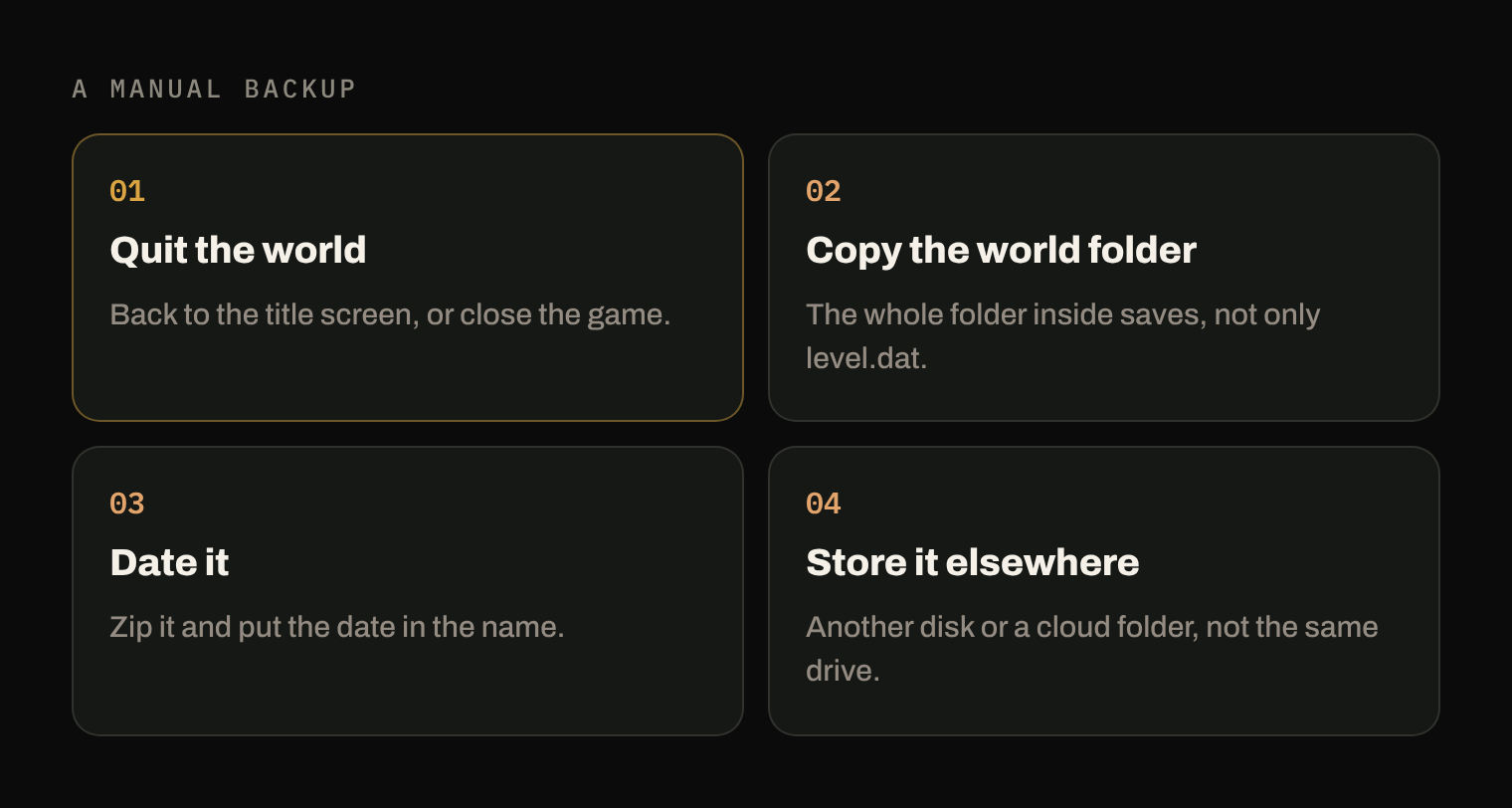
1. Quit the world
Go back to the title screen, or close the game. A world that is open is being written to while you play; copying it at that moment is how you end up with a copy where some files are newer than others. With the world closed, nothing moves.
2. Copy the whole world folder
Open saves and copy the folder of the world you want, the whole folder. A world is not just level.dat: its regions, its players and its data are in subfolders next to it (dimensions, players, data…), and a copy without them is a world that will not open as you left it.
3. Date it
Compress the copy into a single file and put the date in its name, for example My base 2026-11-06.zip. A zip is easier to store and to send, and the date tells you at a glance which copy is the most recent.
- Windows: right-click the folder, then Show more options > Send to > Compressed (zipped) folder (Microsoft Support).
- macOS: Control-click the folder, then Compress (Apple Support).
- Linux: most file managers have a Compress entry in the right-click menu.
4. Store it somewhere else
A backup on the same disk as the game protects you from a mistake, not from a failing disk. Put the zip on another disk, a USB drive, or in a folder that your cloud storage syncs. If the world matters to you, keep two copies in two different places.
When to back up
- Before an update of the game, before switching to a new version.
- Before adding or removing mods, or before changing a modpack.
- After a long session you would not want to replay.
Check that the backup works
A backup you have never opened is a hope. Once in a while, unzip a copy and check that the world folder is all there: level.dat and the dimensions, players and data folders. To really test it, put it in saves under another name and open it in the game.
Restore a world from the backup
- Close the game.
- Unzip the backup.
- Put the world folder back in
saves. If a world with the same name is still there, rename or move the old one first rather than mixing the two. - Launch the game: the world appears in the list.
What Arcane does here
The four steps above are what Arcane Powered does by itself, every time the world changes. It finds saves, keeps one history per world and shows each version with the time, the machine and the files that changed. Restoring a world puts that version back without touching the others.
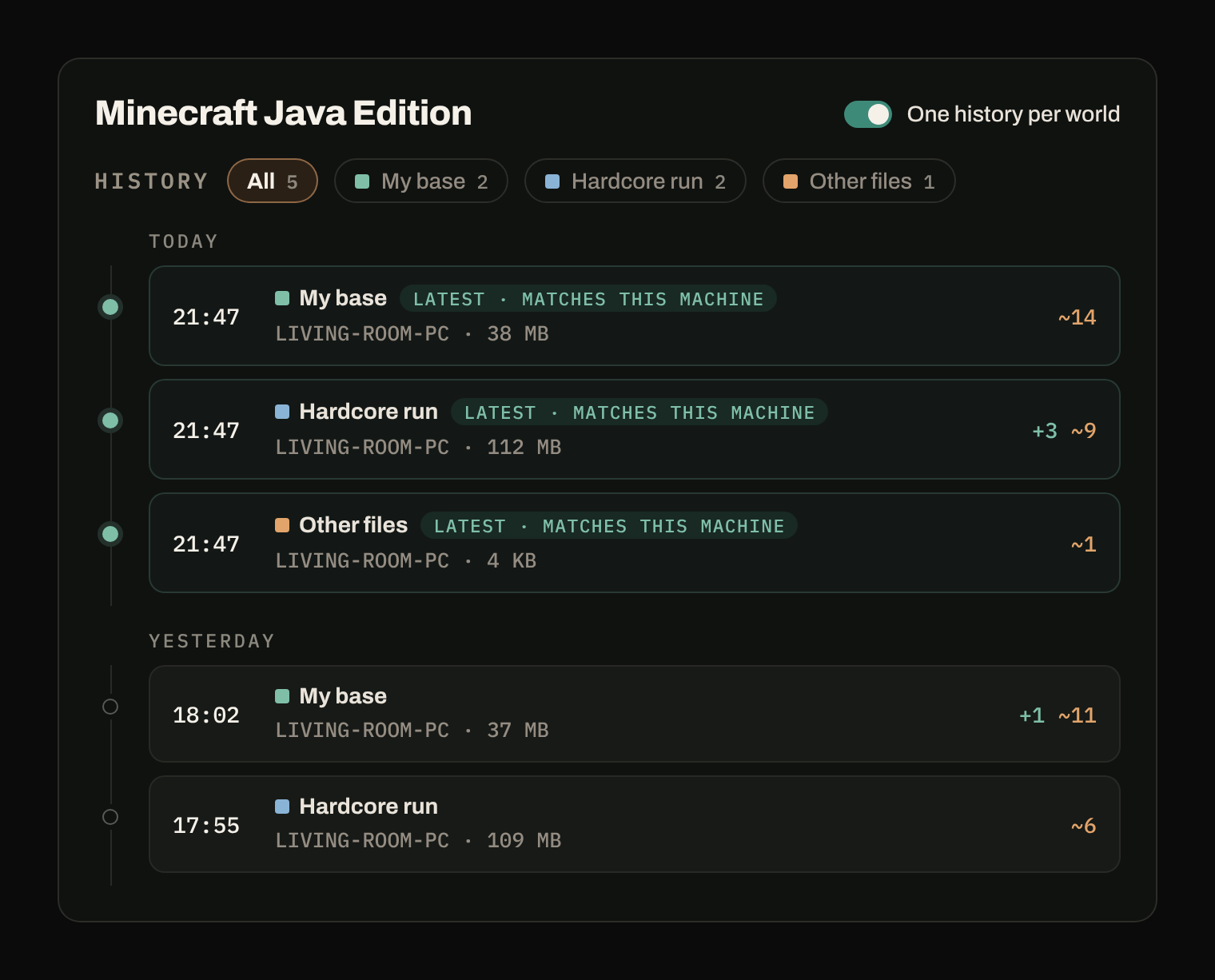
On the free plan, Arcane keeps the latest version of each world and the one before it. Your files stay where they are: Arcane copies them, it never moves them.
Sources
- .minecraft, minecraft.wiki: content of a world folder.
- Zip and unzip files, Microsoft Support.
- Zip and unzip files and folders on Mac, Apple Support.