How to back up a Hytale world
Hytale keeps your single-player worlds on this PC only. How to copy one properly, when to do it, and what to note about your mods.
3 min read
Lire en français
Hytale single-player worlds are stored locally and are not synced anywhere by themselves (LOW.MS). A world you have spent hours on therefore exists in a single folder, on a single disk. Here is how to make a copy that you can actually bring back.
The worlds are in UserData/Saves: %APPDATA%\Hytale\UserData\Saves on Windows. If you need the path for macOS or Linux, see where Hytale keeps your worlds.
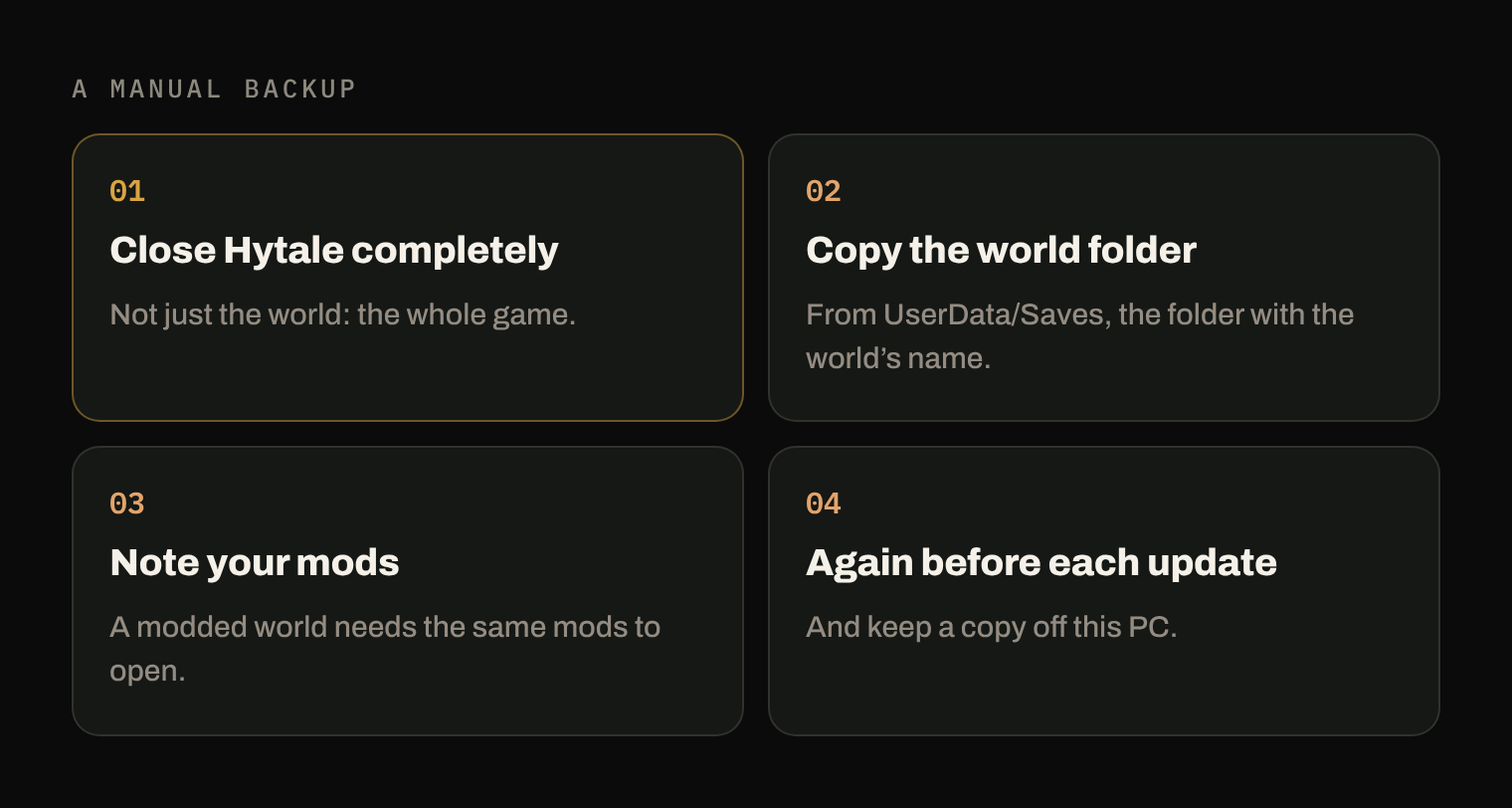
1. Close Hytale completely
Not just the world: the whole game. LOW.MS insists on it before any copy, and the reason is simple: while the game runs, it can write to the world, and a copy taken in the middle of a write may not open.
2. Copy the world folder
In UserData/Saves, each world is a folder with its name. Copy the whole folder, with everything inside, to a place that is not this disk: an external drive, a USB key, a folder your cloud storage syncs. A copy on the same disk protects you from a wrong click, not from a dead disk.
Put the date in the name of the copy, for example My world 2026-11-13: the day you need it, you will know which one is the most recent.
3. Note your mods
A world played with mods expects to find them. For a server, LOW.MS warns that a world backed up with mods needs the same mods, in the same versions, or the server may crash. For a single-player world, take the same care:
- the mods installed for the game are in
UserData/Mods; - a world can also have mods of its own, in a
modsfolder inside the world folder (CurseForge blog). Those are copied with the world.
The simplest way: write down the name and version of each mod in a text file and save it next to your copy.
4. Again before each update
LOW.MS recommends backing up regularly and before major updates. If something goes wrong with a world after an update, a copy made just before lets you go back to the state you had.
Restore a world
- Close Hytale completely.
- Copy the world folder back into
UserData/Saves. If a world with the same name is already there, move the old one aside first instead of mixing the two folders. - Put back the same mods if the world used any.
- Launch the game and open the world.
What Arcane does here
Arcane Powered detects Hytale's UserData/Saves folder and backs up each world on its own, as soon as it changes: one history per world, with the time, the machine and the files that changed for each version. You restore the version you want, and the other worlds stay as they are.
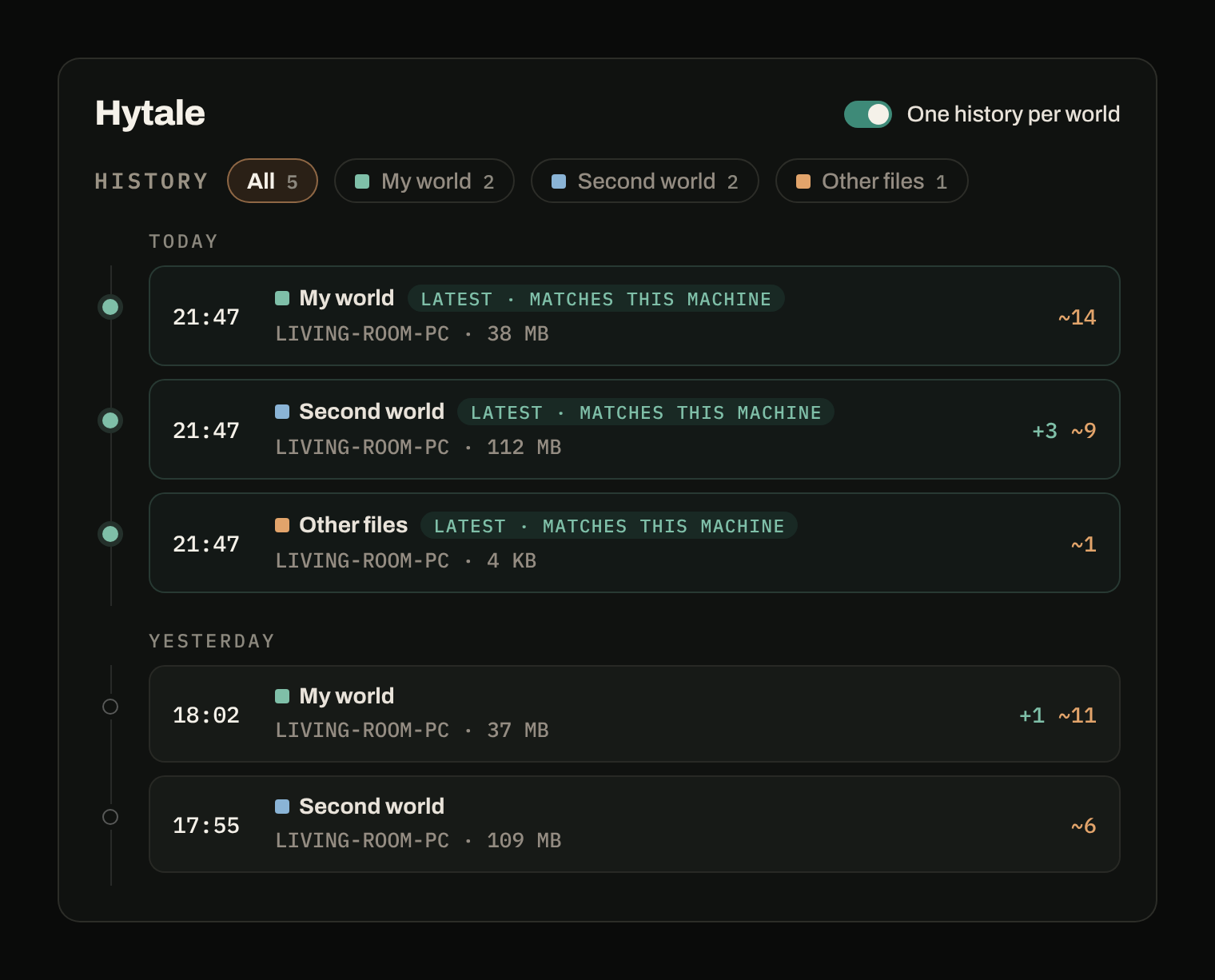
The Mods folder next to Saves is not backed up: your mod list stays your responsibility, which is why step 3 matters even with Arcane.
Sources
- Hytale Save File Location (World, Mods, Config Folders), LOW.MS: local saves, closing the game before copying, backups before updates, mods on a server.
- Where Is the Hytale Mods Folder?, CurseForge blog: the Mods folder and world mods.